ReadyBoost is a procedure for using a USB flash drive to augment system memory in a windows PC. ReadyBoost started with the introduction of Windows XP, and continues with Windows Vista and now Windows 7.
I've already written a Google Knol on a basic introduction to ReadyBoost on Vista so this posting really relates to Windows 7. Read more on the USB Interface, part of an Engineering Web Site.
Basically ReadyBoost allows a user to plug in a USB thumb drive [or other flash memory card] into a USB slot and set that USB drive to act like available system memory [boosting main memory]. I did try using ReadyBoost with Windows Vista on my previous computer but never really noticed any change. However three weeks ago I purchased a new computer, which I'd like to check out.
The new PC is a Dell Studio XPS8100, with an Intel Core i7-870 processor running at 2.93GHz, using
8GB DDR3 SDRAM system memory and 8MB cache. Like any personal computer the Dell uses revision 2.0 of the USB standard. Although there are 3.0 USB flash drives, there do not seem to be any computers supporting revision 3.0 of the USB spec yet.
Anyway I figured I would investigate how Windows 7 handles ReadyBoost. First off I see that Windows 7 does support ReadyBoost, but recommends adding a flash drive having a minimum of twice the system memory [16GBytes in my case].
Doing a quick check at one retailer I find that a 16GB USB thumb drive costs from $22.99 to 79.99. By comparison four 4GB DDR3 memory sticks [16GB] cost $290. So the main memory might be costing more than 3 times that of the same size thumb drive, but it's also operating much faster than the USB drive. So USB and ReadyBoost are a quick and cheap fix to enhance system operation. It doesn't matter, I don't need to purchase more memory for a PC I just received, but I would like to see how ReadyBoost works. I only use 24% of the PCs memory now anyway [indicated by some gadget on the desktop].
The price range variation in thumb drives brings in the next issue Windows 7 had with USB drives. Microsoft indicates that ReadyBoost will only work with "Fast" flash memory, and will not function with "Slow" flash memory. The help file goes on to say that some flash memory devices may contain a combination of both. So USB thumb drives using slow flash memory will not work at all, while 'faster' USB drives may not be able to use all their available memory [the 'slow' portion]. The definition or difference between fast flash memory and slow flash memory alludes me. The difference between fast and slow may explain the wide range in prices between USB drives; that being $29.99 is slow memory and $79.99 fast memory.
Most of the USB drives I just looked at did not indicate any transfer speed, although I do list them from one particular manufacturer below. Having no transfer speed data, and no knowledge of what a 'fast' transfer speed is anyway, indicates that I should only purchase a USB thumb drive that indicates that it is ReadyBoost compatible and maybe even Windows 7 compatible [in case this fast/slow issue is new to Windows 7].
Of the four different 16GB thumb drives available from one particular store, only one indicates that it supports ReadyBoost. Others do indicate that they perform fast transfers but it seems more of a comparison to USB version 1 than any indication of true transfer speed. Looks like I'll be ordering a 16GB USB 2.0 Flash Drive from PNY in the next few days to test out ReadyBoost.
USB 2.0 Transfer Speeds:
Read Speeds; 10MB/sec., 24MB/sec., 25MB/sec., 30MB/sec.
Write Speeds; 5MB/sec, 8MB/sec., 10MB/sec., 20MB/sec.
Note that the USB standard does use terms like Slow-speed, Full-speed and High-speed, but how many people read a technical specification? Regardless, how do the terms used in the USB spec relate to fast and slow used by Microsoft?
I'll up-date the post when I receive the new thumb drive, lets hope I don't lose it at the rate I'm losing all my other thumb drives.
Friday, December 24, 2010
ReadyBoost Compatiblity with Windows 7

Wednesday, November 17, 2010
AOC 2436vh LCD Monitor Review
I purchased a new Dell PC a few weeks ago which I don't want to review for a few more days. However I do want to review the AOC monitor I purchase at the same time. The AOC was a seperate purchased that did not come with the Dell.
The AOC monitor is a 24 inch wide screen, longer than wider. It seems like a nice display but the problem I have with it is the display size. Currently I have almost a 1 inch black border around the display which means I really have a 22 inch monitor and not a 24 inch which I purchased. A blank border as in no information is displayed, so is unusable.
I've tried using the soft keys on the display to correct the display problem, but either the monitor will not fill in the display or I can't figure out the correct key sequence.
AOC has a video [animated] help sequence showing the bottom sequence for a similar monitor, but I just couldn't follow it. To get to the soft screen buttons I need, I have to turn other functions off [I think]. But if I can't figure how to change the screen size in 20 minutes, than my opinion is they got it wrong. For what ever reason the AOC site does not have any help files out under the 2436vh selection.
Now I could have wrote a review out at Best Buy, maybe to help some one else thinking about buying this monitor, but I didn't want to create an account. Or I didn't want tons of e-mail from Best Buy for the rest of my life. There was a comment in their reviews section that mentioned the softkeys, but it was only one out of 5 reviews. There are also a few requests for help out on the web with the same border issue, but as usually there are no answers, just more comments.
I would not recommend buying the AOC 2436vh because I can't figure out how to adjust the screen size. If an electrical engineer can't figure out how to adjust the screen size I wouldn't expect a normal PC user to solve the problem either.
I'm using
Operating System: Windows 7 Home Premium.
Video Card: ATI Radeon HD 5770, with 1 GB GDDR5 video memory [HDMI connection]
Screen Resolution: 1920 x 1080 [which is recommended], Landscape
I also have another 18 inch monitor connected to the same video card [at a different resolution], but that shouldn't matter. I plan to replace the 18" also but not with an AOC monitor. I'm glad I only purchased one monitor with the computer. Maybe next week I'll go out and get a replacement monitor, after I do a bit more research. Also see Companies making PC Monitors.
At least I got a blog post out of this. I'll append an up-date when I get the next monitor. I'll look around for a factory reset also.
About three hours after I wrote this post I changed the monitor resolution and the display filled the screen. Now I had tried that before but only the next lower resolution which the monitor indicated was not support, while this last time I took it down one more notch. Two hours after I got the screen resolution right I received an e-mail from AOC asking if I had tried to reduce the screen resolution, which is good because I had only posted a question to their support a few hour before. Regardless, I still don't like how they do their soft screen controls.
So the reason why the 2436vh hdmi does not fill screen is because of the computer resolution setting. I'm using HDMI for this monitor, and all the seach phrases I've seen include the term HDMI [including searches finding this page].
The monitor defaults to the highest resolution the display will handle, which in turn leads to dead-space around the visible display. The highest resolution is 1920 x 1080. However the Resolution I'm using now is 1680 x 1050, but I'm also using a screen with an aspect ratio of 16:9. So I can't tell if it's a monitor issue, an aspect ratio issue or an HDMI issue.
Friday, April 23, 2010
AMDs 6-Core Processor
Did I just read an article saying AMD would come out with a new six-core processor for a mere $200. I think it may be time to up-grade my PC and get a new one. What; I'll have to upgrade to the new MS OS, what ever that is. I'll have to go out and find out what people are saying about OS7 [Windows 7]
-- Improved boot performance
-- Does not yet support USB 3.0 [available with SP1 late 2010]
Desktop
-- No USB 3.0 support yet [that I found]
-- PCI Express 3.0 not yet been released [later this year]
-- Serial ATA revision 3.0 [no products found yet]
-- DDR3 [mainstream support]
Ok I guess this blog posting is pointless. I would like the 6-core processor, but not at any cost. My office applications wouldn't even really see any advantage any way. But more importantly I find no support for USB 3.0 or Serial ATA version 3.0. I also don't want Windows 7 before the first service pack.
So why purchase a PC that will be out-of-date 6 months after I get it. By next year all USB drives will be USB 3.0. I'm not sure if I would wait for PCIe 3.0 support, I'd be waiting another year. So no new PC for me this year, I'd just end up giving it away 6 months later.
I did note that the AMD3 socket processor style is out. ~
Six core AMD Processors; Phenom II X6 1055T and Phenom II X6 1090T
Wednesday, January 27, 2010
Search Trends vs Page Views

In fact I found a chart of Worldwide HDD Shipments; All Form Factors by Interface, 2008-2012 [produced in 2009], units shipments vs year. The chart indicates that SCSI may have had a few percentage of the total units shipped in 2008, but is all but gone in 2009 and beyond. Seems right to me, of course there still must be a large amount of units still deployed even now, regardless of SCSI being obsolete. Their projection for 2010 indicates that 90+ drive units shipped would contain either a SAS or SATA interface.
But almost no SCSI drive was ever used as a personal 'home use' HDD interface, as the SCSI interface was always more expensive than an IDE drive interface. So most people would have never even had a chance to worry if they had an out-dated SCSI interface in their PC.
So as SCSI searches [on Google] dropped 90% over the last 4 years, SCSI page views on interfacebus have been flat. So why is that? The trend line above shows a tremendous drop in searches over the last four years, but visitors to this site remain constant. That tells me that over the previous last few years I've missed out on a large amount of incoming traffic. Were the pages on this site always relegated to some small portion of the key words, I guess there's no way to tell. Normally I don't like to finds pages that are in decline, but in this case I wish I did. Only because now I know that for a vast amount of internet searches related to the SCSI bus this site was never used. Any way; here are the rest of the pages that make up the SCSI section;
SCSI I interface description.
SCSI II interface description.
SCSI III interface description.
SCSI VI interface description.
SCSI V interface description.
SCSI single ended A cable, and SCSI differential ended A cable.
SCSI single ended Q cable, and SCSI differential ended Q cable.
SCSI B connector, and SCSI P connector.
SCSI HDI-30 connector.
SEO advice; I don't have any optimization advice this time. Although pageviews to this SCSI related section have been constant, they have been consistently low.
Side note; I tried looking up 'Hard drive market forecast', HDD Sales trends, market volume and so on but I could only retrieve a table of contents to reports that had to be purchased. So finding the data is a bit hard and took a number of searches to uncover.
Graph: From Google Trends, using the search term SCSI [2004 to Jan 2010].
Friday, January 08, 2010
The Demise of CableCard

One word about why I'm blogging about CableCard, and then I'll move on to re-posting two previous blog entries on the issue [with more back-ground information].
Checking last years analytics data I found that three of the four pages covering CableCard have received less than a dozen page views each for the year. I would expect a few more page views than that for a released standard, so I took notice and wondered why that was.
Here are the three CableCard pages and their visits [they differ only in pin-outs]:
S-Mode CableCard. 14 visits.
M-Mode CableCard. 13 visits.
CEA-679-Mode CableCard. 11 visits.
Blog Posting [10/5/06 CableCard]:
CableCARD from what I have found so far is a 16-bit PC Card in a PCMCIA format. CableCARD was designed to replace the cable box from the cable company; any company could produce a CableCARD from the standard so you were not locked into renting from the cable company. This was the FCC.
CableCARD appears as a PCMCIA slot on the back of HDTV sets.
Any how version 1.0 came out last year [2005] from I understand and has a few draw backs. Information only flows one-way with CableCARD. So with CableCARD you are not able to use Pay-per-view because the card only receives signals from the cable company it does not send information out to them. Seems like a lot of people are already waiting for CableCARD 2.0 to come out to address the short comings of version 1.0.
So CableCARD from a hardware view is just another implementation of the PCMCIA card. Why they used the out-dated PC Card interface escapes me.
Blog Posting [8/27/07 CableCard]:
So the CableCard standard was released in 2005, with only a few products available by 2007, crushed in 2009 and I assume no longer supported in any new product by 2010 [never being used by anybody]. However it is still mandated by the FCC, so they would have to change their rules.....
Tuesday, March 04, 2008
USB Drive adds Permeate Memory to a Computer

I added one of my older USB thumb drives to my computer to add more memory to the computer system. Yes you can plug in a USB stick into a USB slot and tell the computer to add that memory to the system memory. The USB Thumb Drive is only a 512MB device, but it's a spare stick so why not increase the computer memory for free. The PC is a Velocity Micro with 2GB of DDR2 memory, via two 1GB memory modules. More about the current PC used to run the web site... Oh, I run MS VISTA.
When you plug in the USB stick a pop-up window will give you the option at adding into system memory, but may not. I tried this with a 1GB Geek Squad drive but did not see the option to add it into system memory. Once I looked at the drive I figured that because it seemed to be configured as a CD drive it would not let me. Remember many USB sticks are setup to read and lock the data so you can pull it out at any time. With USB system memory, you want it to read/write as fast as possible. So you may need to reformat the USB drive to see the option to add the drive into system memory.
So I should be able to add more data as a comment in a few days....
Tuesday, December 04, 2007
Velocity Micro Desktop Computer

Order a new computer today from Bestbuy. The Velocity Micro - ProMagix Q6600. The Q6600 contains a quad core Intel processor, an NVIDIA GeForce 8800 GTS graphic card and 2GB of DDR2 memory, and or course Windows Vista.
The Quad processor is clocked at 2.4GHz, but the ad does not display which DDR2 memory [Speed Grades] is used and I didn't see the system listed on the Velocity Micro web site.
The Video card comes with 1 S-Video port, and 2 DVI-ports ~ I use dual monitors so I need both DVI interfaces.
The system has 2 Firewire interfaces and 6 USB interfaces, and a built-in media reader.
Of course the Hard Disk Drive [HDD] is Serial ATA [SATA], but it does not indicate which specification version.
Spare expansion slots include 1 PCI slot, 1 PCIe x1, and 1 PCIe x16 slot. So I can still add another video card, a digital tuner card, and a 7-to-1 digital audio card.
I purchased this system from Best Buy so I could just drive over and pick it up. However my first issue is that my order did not make it off anyones desk. I came home to a call saying I have to confirm the order..... what's up with that.
I never used the HP system purchased last year from Bestbuy, I didn't see any speed improvment so it just sat around and collected dust ~ until I gave it away a few weeks ago.
Sunday, September 16, 2007
Video Interfaces

Just how many different types of video interfaces are there, and which ones should reside on my gear? Of course there's VGA, or really SVGA, which still gets supplied with most monitors and computers. However I oped for DVI on the last video card I purchased.
HDMI came out last year and it's competitor DisplayPort came out this year. Of course there are others, but most interfaces are out-dated ~ as well as all the analog interfaces.
The pic is just another map showing visits by city from China....
Monday, August 27, 2007
CableCard

DCT: Digital Cable Tuner
OCUR: OpenCable Unidirectional Receiver
DIY: Do-it-yourself
Saturday, October 07, 2006
Dual PCs

Now that I have the HP computer connected to the 28" LCD TV I started to use it more.
Having the two 19" monitors in front of me and the 28" TV off to the right is working out. I don't have to switch views as much with 3 screens.
More than once I have started to type on the wrong keyboard....
Thursday, October 05, 2006
CableCARD
CableCARD from what I have found so far is a 16-bit PC Card in a PCMCIA format. CableCARD was designed to replace the cable box from the cable company; any company could produce a CableCARD from the standard so you were not locked into renting from the cable company. This was a government thing, I guess the FCC.
CableCARD appears as a PCMCIA slot on the back of HDTV sets.
Any how version 1.0 came out last year from I understand and it has a few draw backs. Information only flows one-way with CableCARD. So with CableCARD you are not able to use Pay-per-view because the card only receives signals from the cable company it does not send information out to them. Seems like a lot of people are already waiting for CableCARD 2.0 to come out to address the short comings of version 1.0.
So CableCARD from a hardware view is just another implementation of the PCMCIA card. Why they used the out-dated PC Card interface escapes me.
Here is the new CableCARD listing.
Thursday, May 25, 2006
WRT300 IEEE-802n Review
I went out again to see what people were saying about the new wireless-n spec devices
Now I see that some hardware chip manufaturers have issues with producing chip-sets to the draft standard, which really is very different then the 'just up-load new firmware' posts I've seen in the past.
Also that the IEEE.80211n specification is sensitive to environmental conditions which may explain the other negative posting I've have seen.
More over that the IEEE-80211n standard may interfere with IEEE-802.11g wireless networks ~ which I want to keep.
I only want to up-grade my wireless hub to IEEE-802.11n, keeping the rest of my system as IEEE-802g until I get a few dollars out of it 'g' devices.
So, again no wireless-n up-grade tonight. interfacebus: Linksys WRT300n Review
Monday, May 15, 2006
Linksys WRT300n Review

So I wanted to upgrade my wireless router, which is a Linksys Wireless-B BEFW11S4. The BEFW11S4 operates using 802.11b technology ~ 10Mbps.
Two of the three reviews for the WRT300n I saw were negitive. So I'll take a pass tonight.
All my other gear is 802.11g, execpt the router. So just by geting the 802.11n router and operating it as a Wireless-G device I would up-grade my transmission speed from 10Mbps to 54Mbps.
More: interfacebus: WRT300 IEEE-802n Review
Listing of Wireless Routers
Sunday, May 14, 2006
m7470n Review

I'm still really happy with the HP m7470n computer [AMD X2 4200+]. It does seem to be faster than the Alienware PC I was using [AMD 3800]. There are a few minor issues I do have with it.
First; the 300 watt power supply is pointless, it's not large enough to fully load the extra expansion slots on the PC ~ like adding a high end video card. Second; the documentation seems inaccurate. The HP site shows a m7470n populated with expansion cards which did not come on my computer. The store site indicates the PC has a video card, which it does not. Finally much of the front of the PC is dedicated to a large removable hard drive bay. I don't have an HP removable drive and don't really need one.
I like the fact it does not have a front door ~ I hated the door on the Alienware PC
I have yet to add the 10,000 rpm Raptor to the system yet. I have also not done anything with the TV card or any thing to do with multi-media ~ I just run a web site.
There are a few additional posts on the m7470n
interfacebus: New Video Card
interfacebus: On-Board Video
interfacebus: New Computer
My only other comment concerns Open Office which I use on this PC. Seems really slow, but I am not using the quick start option. Open Office did not come with the HP PC, I loaded that software.
Be careful with card additions; I think I'm allowed 10 watts per slot. The video card I added uses around 70 watts. It was the lowest grade video card at the store with two video inputs ~ still a good card.
Listing of Computer Manufacturers
Tuesday, May 09, 2006
Laptop Power Inverter

I picked up that auto power inverter for the notebook computer tonight. The unit is a 140 watt adapter; 12 volt vehicle power to 120 volt AC moble power.
The power inverter is made by CyberPower, model # CPS140BI with a 180 degree swivel head, one 3 prong AC plug, a green power/surge LED [surge protected].
The specifications are;
Output Voltage: 120 Vac, 60Hz
Output Power: 140 watts [Continuous power]
Input Voltage: 10.8Vdc to 15.8V DC
Input Current: 12A max
Normally power inverters provide the maximum instantanious current [power] in large font, and it's up to the buyer to insure it will handle the user's Continuous power requirements. This unit only gives the Continuous power, leaving the maximum power to be computed; 12 Amps x 15.8 volts = 189.6 watts.
The HP ze4805wm laptop PC uses 75.05 watts: 19Vdc x 3.95A
I turned the car on, pluged the unit in and powered-up the laptop. I let the PC boot up and then I turned it off. I didn't notice any heat coming off the power inverter.
Power inverter manufacturers
Laptop manufacturers
The CyberPower CPS140BI cost me $29.94. The weight must be 3 pounds lighter then the unit I did have. Also this fits in the console, while the older Vector Force 350 unit needed to be placed on the floor under your feet.
Tuesday, May 02, 2006
New Video Card

The HP m7470n does appear to be faster than the Alienware PC it replaces, but I'm still working with it. ~ loading software and files. The HP computer is now my main computer [for now].
The Alienware is just behind me running on a single 17" LCD, while I use the HP7470 on two 19" LCD screens. The room is some-what cool at 81.5 F, with the AC and fan running, but the exit air from the HP is 101.3F. Normally the Alienware exit air would be up 10F.
The HP only comes with a 300 watt power supply which is vary disappointing for a PC over $1000. The PC's I looked at on-line were all 600W.
I think, just by plugging in the new video card I'm over driving the Power supply! An empty slot but you can only plug in a $25 video card ~ so why up-grade at all.....
Status update; I ended up giving the computer away about a year and half later.
That was a nice video card though.
A few months ago I finally end up giving the Alienware computer away too.
And I also no longer see a need for a VGA input.
----------------------------------------------------------------------------
Thursday, January 05, 2006
Laptop Memory Up-grade
SODIMM

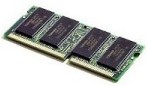
My Notebook computer [HP ze4805wm]contains one 256 MB SO-DIMM [200-pin]. The SO-DIMM style is PC2100. The clock speed of PC2100 is 266MHZ.
The part number for the memory module which was supplied with the laptop is; Hewlett Packard (HP) Laptop / Notebook Memory: 317435001 / 317435-001. I was never able to find the cas latency.
I discovered I have two SO-DIMM slots so the plan is to up-grade the system with another 256MB PC2100 SO-DIMM, giving me 512MB of system memory. This allows me to keep the orginal 256MB. Ranging around $30 to $70 per stick.
SO DIMM = Small Outline Dual In-Line Memory Module.
Tuesday, December 27, 2005
IDE Hard Drive Bus
Nominally called the IDE (Integrated Drive Electronics) bus; how ever it's more correctly known as the ATA (Advanced Technology Attachment) specification [ATA Bus]. The IDE bus is used in Personal Computers [PCs] as a hard-drive or peripheral bus to interconnect the PC mother board and a hard drive. The IDE bus is a Parallel bus. With the introduction of the Serial ATA [SATA] specification Parallel ATA [IDE] is now being called PATA.
The specification has been up-graded a number of times each building on the past specification. ATA-1 and 2 were single documents, but like SCSI, after ATA-2 the specification was divided into a number of different documents. Most maintain backward compatibility, keeping in mind the cable changed. Each new version of the standard saw an increase in bus speed. The data transfer rate is shown after each version listed below. The current maximum IDE bus speed is 133MBytes/sec [133MBps].
Data is passed Single-Ended,via data line and ground. Only the 40 pin connector pin out are referenced below, which are used on 3.5-inch drives, but there is also a 50 pin connector used on 2.5-inch drives. The 50 pin connector adds the power and Master/Slave functions. PCMCIA uses a 68 pin connector. A graph showing the difference between ATA and Ultra ATA timing is shown on the below. The standard defines a single Host or adaptor which connects to one [device 0] or two [device 1] devices in a daisy chained configuration. The IDE, ATA connector pinout is listed in the table below. Note; there is text to decode the 80 pin cable onto the 40-pin connector.. There are a number of versions of the ATA bus, with each of the different versions listed below. The Serial ATA: which replaced the ATA bus is listed on its own page. Details for each bus version are listed below. A graphic which provides a comparison of all the different IDE interfaces listed here is provided on the HardDrive Interface Speed page.
ATA-1 (IDE), [Obsolete] 8.3MBytes/sec, 8 or 16 bit data width, 40 pin data ribbon cable/connector. With a maximum of 2 devices on the bus. Using PIO Modes 0, 1 or 2. Performed no bus error correction. The ATA-1 specification was released in 1994, and was withdrawn in 1999.
ATA-2 (EIDE, or Fast ATA), [Obsolete] 16.6MBytes/sec, 8 or 16 bit data width, 40 pin data ribbon cable/connector. With a maximum of 4 devices on the bus. Using PIO Modes 0, 1, 2, 3, or 4. The ATA-2 specification was released in 1995 and was withdrawn in 2001.
ATA-3, 16MBytes/sec, 16 bit data width, 40 pin data ribbon cable/connector. Using PIO Modes 0, 1, 2, 3, or 4 and Multiword DMA modes 1 and 2. Runs with 120nS Strobes (rising edge to rising edge). Includes CRC.
ATAPI (ATA Packet Interface)is the CD-ROM side of the interface. It uses the same connector as ATA, and adds 1 for analog and 1 for digital audio. The ATA-3 specification was released in 1997 and was withdrawn in 2002.
ATA-4 Ultra-ATA/33, 33MBytes/sec, 16 bit data width, 40 pin data ribbon cable/connector. Using PIO Modes 0, 1, 2, 3, or 4 and Multiword DMA modes 1 and 2 and Ultra DMA modes 0, 1, and 2. Runs with 120nS Strobes (rising edge to rising edge), but used both edges of the Strobe producing an effective 60nS Strobe rate. 33MBps Transfer speed = [(1/120nS) x 2 bytes x 2]. Where 120nS cycle time is 4 clock periods at 30nS each. Added CRC checking. The ATA-4 standard was released in 1998.
ATA-5 Ultra-ATA/66, 66MBytes/sec, 16 bit data width 40 pin data connector/80 pin cable, with the additional 40 new pins being Ground. The new cable allows ATA/66 to run at a faster rate then ATA/33. Using PIO Modes 0, 1, 2, 3, or 4 and Multiword DMA modes 1 and 2 and Ultra DMA modes 0, 1, 2, 3 and 4. Runs with 60nS Strobes (rising edge to rising edge), but uses both edges of the Strobe producing an effective 30nS Strobe rate. 66MBps Transfer speed = [(1/60nS) x 2 bytes x 2]. Where 60nS cycle time is 2 clock periods at 30nS each. The ATA-5 standard was released in 2000.
ATA-6 Ultra-ATA/100, 100MBytes/sec,16 bit data width 40 pin data connector/80 pin cable, with the additional 40 new pins being Ground. Using PIO Modes 0, 1, 2, 3, or 4 and Multiword DMA modes 1 and 2 and Ultra DMA modes 0, 1, 2, 3, 4 and 5. 100MBps Transfer speed = [(1/40nS) x 2 bytes x 2]. Where 40nS cycle time is 2 clock periods at 20nS each. The ATA-6 standard was released in 2002.
ATA-7 Ultra-ATA/133, 133MBytes/sec,16 bit data width 40 pin data connector/80 pin cable, with the additional 40 new pins being Ground. Using PIO Modes 0, 1, 2, 3, or 4 and Multiword DMA modes 0, 1 and 2 and Ultra DMA modes 0, 1, 2, 3, 4, 5 and 6. 133MBps Transfer speed = [(1/30nS) x 2 bytes x 2]. Where 30nS cycle time is 2 clock periods at 15nS each. The ATA-7 standard was released in 2005. With the introduction of Serial ATA, this is the last expected update of the IDE [PATA] bus. SATA: is faster, and requires a smaller cable, which means better air flow in the Chassis.
Serial ATA: (Ver 1.0) High Speed Serialized AT Attachment
Serial version of the IDE [ATA] spec. Uses a 4 conductor cable with two differential pairs [Tx/Rx], plus an additional three grounds pins and a separate power pin. Data runs at 150MBps [1.5GHz] using 8B/10B encoding and 250mV signal swings. Serial ATA is not compatible with the IDE [Parallel ATA] because the connectors are different, the voltage levels are different, and data format is different [SATA sends a bit at a time while PATA sends 16 bits at once]. SATA will not interface with the IDE bus. No cable can be made to connect SATA with IDE. However a converter may be purchased which translates SATA to PATA. One module appears as a 2" x 2" board, for $50 and converts IDE controllers 66/100/133/150 MB/s to Serial ATA 150.
Regardless of the electrical interface the drives uses, there are also Solid State Drives available that do not require a platter. Or just Hybrid Hard Disk Drives that still use a platter, but have a greater amount of Flash Memory.
Wednesday, November 30, 2005
Hard Disk Drive Transfer rates
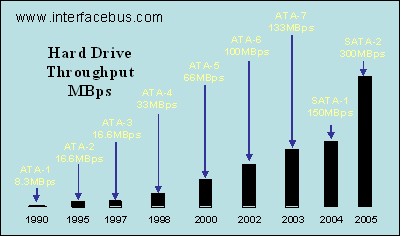
Hard Drive Throughput Rates
The maxtor external USB Hard Disk Drive [HDD] I just got has a maximum transfer rate of 480Mbps [bits per second]. That transfer speed is based on it's USB interface bus. Both the internal hard drives I use are Serial ATA interfaces, and operate at 150Mbps. These are maximum numbers, not sustained transfer rates over a long transfer operation.
The graphic above shows the increase in transfer rates for the IDE bus and the new Serial ATA [SATA] bus.
Just in case you looked at the numbers, and maybe they seem high for the USB interface, they just my be. The sustained transfer rate for the external HDD is only around 30MBps. I just defrag-ed that hard drive, and it took around 20 minutes, very slow.
FYI; there are also Solid State Drives that are 100% Flash Memory based. Same transfer rates, as the data transfer rates are really based on the electrical interface.
Tuesday, November 22, 2005
New Computer info
So this is what I'm thinking about so far:
Mother Board [both use AMD Processors]:
$163 ASUS A8N-SLI Premium Socket 939 NVIDIA nForce4 SLI ATX
$115 Abit ABIT KN8 SLI Socket 939 NVIDIA nForce4 SLI ATX
Processor: [AMD Dual Core]
$787 AMD Athlon 64 X2 4800+ 1GHz FSB Socket 939 Dual Core
$97 Kingston ValueRAM 1GB 184-Pin DDR SDRAM System Memory
$97 Kingston ValueRAM 1GB 184-Pin DDR SDRAM System Memory
$00 Chip Set nVidia nForce4 SLI X16
$250 Video Card Aopen Aeolus 6800 GT
$200 Lian Li V COOL PC-V1000APLUS Silver Computer Case
$89 Antec TRUEPOWERII TPII-550 550W Power Supply
$40 DVD/CD R/W ~ I still need to look around
Hard Disk Drives [HDD, both are Serial ATA with 8MByte Cache]
$161 Western Digital Raptor WD740GD 74GB 10k RPMSATA150
$161 Western Digital Raptor WD740GD 74GB 10k RPMSATA150
$142 Windows XP professional
I'm also thinking about a dual processor system, then up-grading those to dual core when the price drops...
